IT

GL.iNet Comet 5G Review

One of the downsides of self-hosting critical applications like email on your homelab is that if you lose connectivity, especially when you are travelling, you are out of luck. It’s happened to me twice. The first time I had to ask a colleague (Hi Jason!) to go get my spare keys from the building super and reboot my home server. In the other instance, I walked my wife over the phone through the steps of rebooting our OpenBSD home router that runs on a somewhat dubious computer sourced from AliExpress with an Intel N100. I actually ordered an industrial-grade Asus NUC 13 Rugged N50 to replace it, but in a variant of the Heisenberg effect, the original machine started working flawlessly, go figure.

On some of my HP machines (Z workstations and EliteDesk 8xx Mini), the firmware includes Intel AMT/IME spyware management firmware. You can install the MeshCommander software to get a poor man’s version of the IPMI remote management facility included in most servers. IPMI usually includes remote KVM, i.e. being able to control the computer over the network as if you were directly in front of its keyboard, mouse and monitor. KVM stands for Keyboard, Video and Mouse, although most KVM systems also give you the ability to insert a virtual USB drive to boot into diagnostics or a rescue drive. This allows access to the BIOS and other things you can’t do from the OS itself, or recover if the OS itself has crashed.

To resolve this vulnerability, I have been equipping the majority of my key machines that don’t have Intel AMT with physical IP KVM devices. These used to be very expensive and required having some cursed version of the Java plugin installed in your browser, but recently the Pi-KVM project has opened up the market and there are now a host of relatively inexpensive (in the $100 range) devices available like the JetKVM and GL.iNet’s Comet line of IP KVMs.

GL.iNet is known for its well-regarded line of travel routers like the tiny but mighty Mango, but has been expanding into IoT and now IP KVMs. That line is now quite extensive, with:

  • The basic Comet GL-RM1.
  • A variant with PoE, the GL-RM1PE which also supports USB-C PD for power.
  • A pro variant, the GL-RM10 (I haven’t tried it).
  • More interestingly, a 5G cellular equipped model, the GL-RM10C.

Like their travel routers, the KVMs have an open operating system based on Linux with SSH and root access, and excellent support for VPN protocols actually invented in this millennium, i.e. WireGuard rather than hoary L2TP, PPTP, IKE/IPsec or OpenVPN.

I have a basic Comet, two PoE powered ones and the 5G cellular one attached to the router.

Due to the exhaustion of available IPv4 address pools, almost all cellular carriers today use some form of Carrier-grade NAT (CGNAT), which means you do not have a permanent IP address for your mobile device. Some cellular carriers will offer plans with static IP addresses, but they are extremely expensive including the per-kilobyte charges because this is a niche market, primarily enterprises wanting remote monitoring and access to satellite offices.

GL.iNet offers a cloud service for remote access and also supports Tailscale and ZeroTier. Either of these would obviate the need for an exotic data plan SIM. I don’t trust the cloud, however, and find Tailscale too invasive, so I opted instead to set up WireGuard between the GL-RM10C and a cloud server, with routes forcing it to use the 5G wwan0 interface instead of Ethernet for the tunnel.

The /etc/wireguard/wg0.conf config on the server is:

[Interface]
Address = 192.168.2.1/24, fddd::ffff/64
ListenPort = 45340
PrivateKey = <redacted>
PostUp = iptables -A FORWARD -i %i -j ACCEPT; iptables -t nat -A POSTROUTING -o eth0 -j MASQUERADE;iptables -A FORWARD -o %i -j ACCEPT; ip6tables -A FORWARD -i %i -j ACCEPT; ip6tables -t nat -A POSTROUTING -o eth0 -j MASQUERADE;ip6tables -A FORWARD -o %i -j ACCEPT
PostDown = iptables -D FORWARD -i %i -j ACCEPT; iptables -t nat -D POSTROUTING -o eth0 -j MASQUERADE;iptables -D FORWARD -o %i -j ACCEPT; ip6tables -D FORWARD -i %i -j ACCEPT; ip6tables -t nat -D POSTROUTING -o eth0 -j MASQUERADE;ip6tables -D FORWARD -o %i -j ACCEPT
 
[Peer]
PublicKey = <redacted>
AllowedIPs = 192.168.2.2/32, fddd::1/128

on the GL-KVM, it is:

[Interface]
Address = 192.168.2.2/24, fddd::1/64
#ListenPort = 45340
PrivateKey = <redacted>
 
[Peer]
PublicKey = <redacted>
AllowedIPs = 192.168.2.0/24
Endpoint = <redacted>:45340
PersistentKeepalive = 30

Add opening UDP port 45340 on the firewall, and on the KVM a /etc/init.d startup script to call route add <ip of server> wwan0 and wg-quick up wg0 at boot time, that establishes the tunnel. Since the IPs on either end are not routable, I also have HAProxy running in TCP mode on the server to allow access from the Internet:

global
    log /dev/log local0
    log /dev/log local1 notice
    daemon
    user nobody
    group nobody

defaults
    mode tcp
    log global
    option tcplog
    timeout connect 5s
    timeout client  1m
    timeout server  1m

frontend https_in
    bind <redacted>:443
    default_backend wg_https_out

backend wg_https_out
    mode tcp
    server wg0_peer 192.168.2.2:443 check

I have a £5/month SIM card and plan installed, with a 5GB quota. I only start HAProxy when I actually need it so I don’t waste any of it on script kiddies trying to break in.

The user interface is largely the same across the entire GL.iNet KVM product line, is excellent, uses native Web technologies and WebRTC to provide the remote video, so no janky VNC plugins or Java required. The video is crisp, as can be expected from a purely digital signal path, and I haven’t noticed compression artifacts, even when running over cellular.

It does have the same problem as almost all IoT devices with a Web UI, of not being able to self-provision a TLS certificate. I modified my monthly Let’s Encrypt certificate rotation script to copy the keys and certificates to /etc/kvmd/user/ssl/server.{key,crt} where the firmware expects them to be. There is an IETF effort to fix this once and for all, but it is still very much work-in-progress and probably still too complex for the average consumer to deal with.

It’s also worth noting the 5G in the Comet 5G is RedCap (reduced capability), which is a cheaper and more power-efficient version of 5G that is capped at around 100Mbps instead of the gigabit speeds full-fat 5G offers. This is unlikely to be an issue for this class of devices, as people are not buying them to play Doom remotely.

What you don’t get with the Comets is the ability to remotely power-cycle the machine you get with IPMI or AMT. They have an accessory for computers with ATX motherboards, but I haven’t had one in ages, and a Rube Goldberg-like contraption poetically named Fingerbot that physically pushes the power button. JetKVM does have an accessory that interposes between computers with a barrel DC connector and their power brick, to allow turning them on and off. Let’s hope GL.iNet is inspired to make their own, and also a USB-C one while they are at it. In the meantime, I plan on using a smart-home type Wi-Fi-controlled power switch running Tasmota to do forced power cycles.

I also have a JetKVM. It’s a cute little device, very compact (but surprisingly heavy), and I am planning to add it to my portable computer-maintenance toolkit rather than keeping it stationary like my Comets.
Llama-bench on some consumer-grade AI hardware

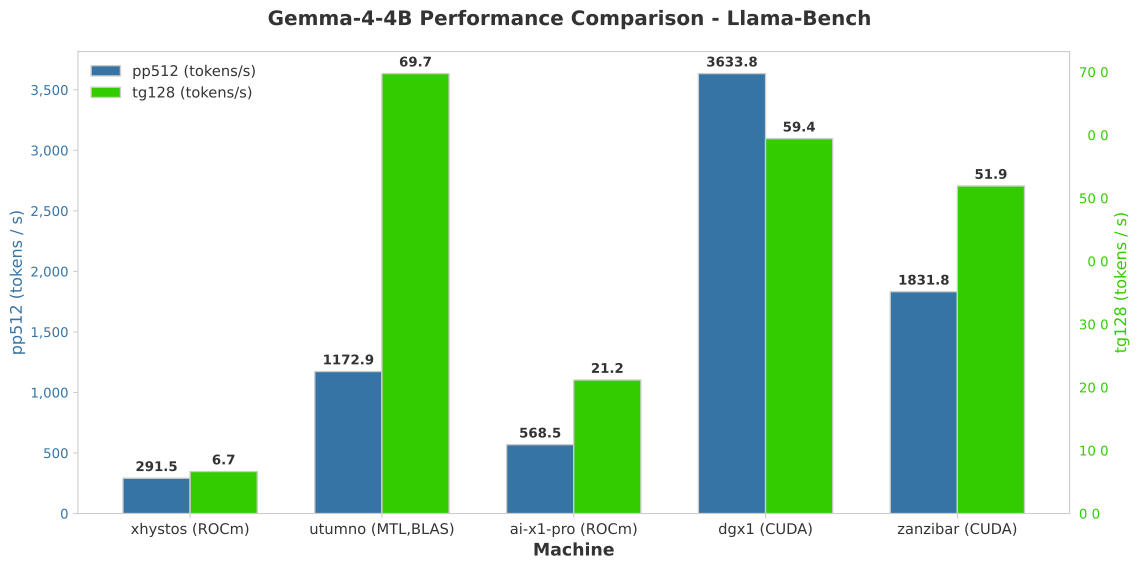
I have been on a bender this weekend experimenting with various LLM-capable machines in my homelab, specially the very capable yet fast Qwen3.6-35B-A3B. I haven’t found good benchmarks, though, so I ran the small Gemma4 E4B Q4_K model (4.62 GiB, 7.52B params) using llm-bench. This has two measures: prompt processing 512 (pp512) is how quickly in tokens/second the LLM can read a 512-token prompt, i.e. how good the LLM is at “reading”, and token generation 128 (tg128) is how quickly it can write 128 tokens’ worth of text, i.e. how fast it is at answering the question.

Hostname Backend pp512 t/s tg128 t/s Machine
xhystos ROCm 291.48 6.65 AMD Ryzen AI 7 350 Krackan Point 32GB
utumno Metal,BLAS 1172.93 69.73 Mac Studio M1 Ultra 128GB
ai-x1-pro ROCm 568.54 21.16 AMD AI 9 HX 370 Strix Point 96GB
dgx1 CUDA 3633.84 59.42 NVIDIA DGX Spark 128GB
zanzibar CUDA 1831.78 51.92 NVIDIA A2000 12GB

(click on the hostnames to get the raw report)

The Mac Studio performs very well at token generation, despite being a 4 year old machine, but perhaps that reflects how Llama.cpp is particularly optimized for Apple Silicon. I was also surprised at how strong the performance of the A2000 is, despite it being a fairly weak low-power graphics card meant for 2D CAD in small form-factor workstations like my HP Z2 Mini G9 where it lives. Conversely, the Strix Point performance is underwhelming, even if subjectively it performs reasonably well with Qwen 3.

Moving away from Apple platforms, a living diary

TL:DR A living diary of how I am slowly moving away from Apple

My first computer was an Apple ][+ in 1981. The first computer I purchased with my own money was a Mac Plus, circa 1990. Then I discovered Linux in 1991 and switched. When Apple introduced Mac OS X, I purchased an iMac G4, and over time transitioned fully to the new UNIX-based Mac. I also got the first iPod, iPhone and iPads, so I could fairly be accused of being an Apple fanboi, even if I have never been blind to the platform’s limitation and Apple’s questionable business practices.

Over the last year and more, I have been souring over Apple as a platform and a company:

  • Their software quality, never particularly high (even if Microsoft made them look good in comparison), has tanked since they fired Scott Forstall. I am not even sure whether they are any better than Microsoft at this point.
  • Their need to eke out growth from a maturing smartphone and PC business means they are incredibly rapacious with the App Store tax, and pushing developers towards user-hostile business models like subscription pricing.
  • Their claim to privacy leadership was always more marketing than reality, but is now in tatters, see my previous article on how to circumvent their tracking (not always possible, e.g. notarization).
  • Their extortionate pricing on RAM and storage has grown impossible to ignore.
  • Their constant self-shilling for useless services like Apple News or Apple Fitness in the UI makes a mockery of their claim to provide a superior user experience.

So what is to be done? I am working to switch to Ubuntu and CachyOS Linux on the desktop and laptops (I still use Alpine Linux on servers), and to GrapheneOS, a degoogled and highly secure fork of Android. To this end, I purchased a few laptops to run Linux as a daily driver (Asus Vivobook S and Lenovo Thinkpad E16 G3), a Google Pixel 8 Pro and Google Pixel Tablet. I also have a Beelink GTR9 Pro on order (running the AMD Strix Halo Ryzen AI Max+ 395 processor) to be the twin and successor to my Mac Studio.

I carry both my iPhone 16+ and the Pixel with me at all times, and force myself to use the GrapheneOS device first, and only fall back to the iPhone if all else fails, which indicates which functionality I need to migrate next.

The rest of this article is a living diary of the migration and what software I am using as a replacement, and I will update it as I progress.

iOS and iPadOS to GrapheneOS

Of course, many apps are cross-platform and migrating is straightforward.

It’s annoying that Signal and WhatsApp don’t allow you to run the same account concurrently on two phones, a vestige of their original sin, i.e. basing identity on the rotten foundation of the Public Switched Telephone Network.

Upcoming:

  • Things (to do list manager): I couldn’t find what I wanted so I vibe-coded a PWA using Claude: Thufir, although it is still quite janky.
  • Apple Pay: there are reports Curve Pay works on GrapheneOS.
  • Backups: I set up nginx as a WebDAV server for Seedvault, but it is not yet reliable.
  • Signing PDFs on an iPad: no solution in sight.
  • CarPlay: my 2020 Mini Cooper Electric only supports CarPlay and not Android Auto, so I am stuck.

macOS to Linux

Upcoming:

  • Scanning: probably SANE.
  • Desktop publishing: either back to LaTeX or Typst, though neither is WYSIWYG.
  • Quick Look: no equivalent that I know of, I certainly miss this.
  • Finder column view: no equivalent either.
  • Affinity Publisher: TBD

Apple privacy checklist

TL:DR Apple’s claims to being privacy-first are a marketing sham

Apple claims to hold privacy at its core, but it has been an advertising company for at least a decade, and now that smartphone and computer sales are plateauing and new products like the Apple Vision Pro have failed to set the world on fire, Services revenue (an euphemism for the 30% App Store tax on developers and advertising) is critical to maintaining the company’s stock price.

Recent behavior from Apple has confirmed Google or Meta’s take that Apple’s privacy claims are just that, clever marketing to obscure the fact the privacy measures they do have are mainly there to stymie its competitors:

  • Apple forces app developers to ask permission to access the advertising tracking ID (IDFA), but exempts itself from that requirement by a truly Clintonesque redefinition of tracking as “sharing data with other companies, not with ourselves”—one rule for thee but not for me

  • Apple’s notarizarion feature leaks information to Apple on what apps you have installed on your device. What’s worse, this is sent unencrypted so anyone with network access can also grab this info. Apple promised to give a way to disable this misfeature (which also has a noticeable performance impact for developers) but quietly reneged on this.

  • Apple would upload recordings of Siri queries without your consent, and Apple employees and contractors had access to them

  • Apple implemented a CSAM scanning feature, whereby your iPhone would rat you out before the government even asked them to do so. Even though they reversed themselves, they set a precedent authoritarian governments will certainly avail themselves of.

  • When they introduced the Journal app, they gave them wide-ranging access to other apps’ data without consent.

  • Apple silently opted you into “Privacy Preserving Ad Measurement”. This an Orwellian misrepresentation, as your browser is tracking you on behalf of advertisers, just as Google Chrome is doing with its Topics API. Firefox is equally guilty of this (PDF) and unrepentant. Even Google, the most voyeuristic of the surveillance-industrial complex, asked for permission before enabling this in Chrome, albeit with wildly misleading wording because no one does dark patterns quite as smugly as don’t do be evil Google.

  • Apple silently opted you in to “Enhanced Visual Search”, where it uploads fingerprints of landmarks in your photos to its server. It claims to use differential privacy and homomorphic encryption to make this privacy compliant, but this still leaks information, even if Apple’s implementation were perfectly bug-free (given the abysmal track record of Apple QA of late, this would require heroic levels of credulity).

  • They did it also for “Improve Search"—Seeing a pattern here yet?

Here are the settings you need to review and change from their privacy-invading defaults, in chronological order of when they were introduced. Apple also has the nasty habit of silently turning them back on, so you will need to check this list regularly. You will also need to set these on each device separately.

iOS and iPadOS

  • Disable the IDFA altogether and do not allow apps to ask for it:
    • Settings / Privacy & Security / Tracking / Allow Apps to Request to Track / (turn off)
  • Disable Apple’s own Ad network tracking:
    • Settings / Privacy & Security / Apple Advertising / Personalized Ads / (turn off)
  • Disable Sharing of information with Apple, including Siri recordings:
    • Settings / Analytics & Improcements / (disable all of them)
  • Private Click Measurement:
    • Settings / Apps / Safari / Advanced / Privacy Preserving Ad Measurement / (turn off)
  • Improve Search:
    • Settings / Search / Help Apple Improve Search
    • Settings / Apps / Safari / Search / Search Engine Suggestions / (turn off)
    • Settings / Apps / Safari / Search / Safari Suggestions / (turn off)
  • Visual Search:
    • Settings / Apps / Photos / Enhanced Visual Search / (turn off)
  • Journal App:
    • Settings / Privacy & Security / Journaling Suggestions / (turn them all off)

macOS

  • Disable analytics:
    • System Settings / Privacy & Security / Analytics & Improvements / (turn them all off)
    • Sign in to account.apple.com, then Privacy / iCloud Analytics / Share iCloud analytics / (turn off)
    • This might also be a good time to request export of all the data Apple holds on you
  • Disable Apple’s Ad tracking:
    • System Settings / Privacy & Security / Apple Advertising / Personalized Ads / (turn off)
  • Disable Siri:
    • System Settings / Apple Intelligence & Siri / Siri / (turn off)
    • System Settings / Apple Intelligence & Siri / Siri history / Delete Siri & Dictation History / (click on the button)
  • Private Click Measurement:
    • Safari / Settings / Advanced / Allow privacy-preserving measurement of ad effectiveness / (turn off)
  • Improve Search:
    • System Settings / Accessibility / Motor / Voice Control / Improve assistive voice features / (turn off)
    • System Settings / Spotlight / Siri Suggestions / (turn off)
    • System Settings / Spotlight / Help Apple Improve Search / (turn off)

Further actions

Ideally, change your default browser to something better, like Vivaldi or LibreWolf.

Stop iMessage from using insecure unencrypted SMS as a fallback (warning: this setting is buggy and often ignored):

  • on iOS: Setting / Apps / Messages / Send as Text Message / (turn off)

Better yet, ditch both SMS and iMessage for Signal or WhatsApp, who do not have an unencrypted option to snare you. See also this Signal hardening checklist.

Install Little Snitch, an outbound firewall you can use to control what sites apps can connect to.

Disable Apple Intelligence.

Ultimately, switch to Linux and GrapheneOS or LineageOS.

PSA: LinkedIn single-sign-on dangers

I have a work-issued computer that I keep rigorously separate from my personal stuff. It belongs to my employer and thus I do not keep personal files on it, or access personal email and certainly don’t save personal passwords on it. I even have it on a separate VLAN on my home network.

This is why I was horrified when I went to the LinkedIn website on my work computer (to look at a colleague’s posting) and it automatically started a single sign-on with my company’s GMail (my work address is of course linked to my LinkedIn profile).

This means a company with Google Apps can potentially access your LinkedIn account without your permission. Considering LinkedIn’s past record of egregious security failures1, it shouldn’t be too surprising, but still…

I couldn’t find any setting to disable SSO, and it seems the only way to prevent this is to turn on two-factor authentication (where the only options are the grossly insecure phone SMS text message method or the equally phishable TOTP Authenticator app codes, not the actually secure Webauthn/FIDO U2F USB keys).


  1. A colleague had built a GPU mining rig for fun and profit, and run the LinkedIn hashed password dump through it using hashcat. He found Donald Trump’s was a variation on “You’re fired!”… ↩︎